
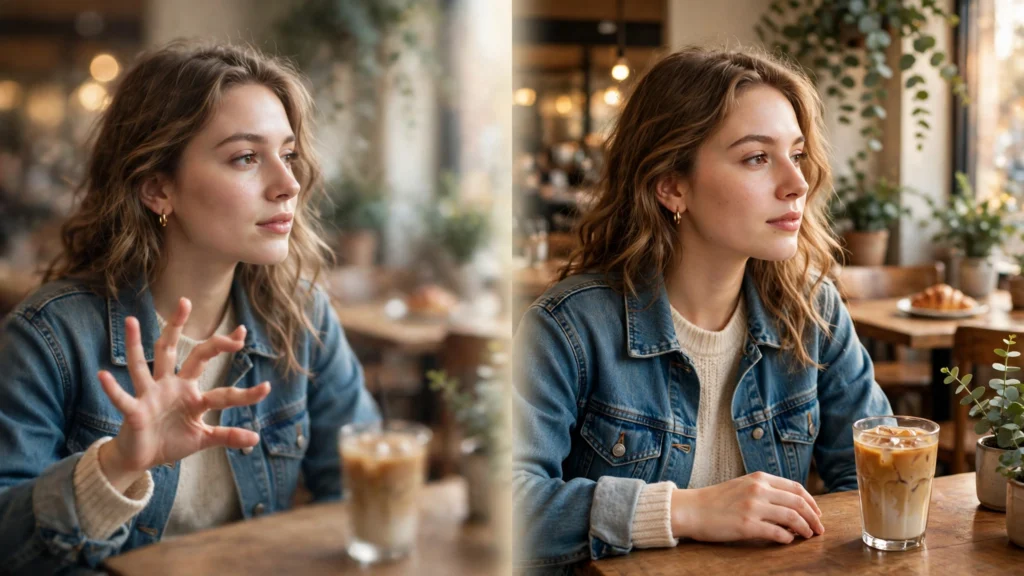
Your AI photo is almost perfect — except the hands look strange, the face is a little blurry, and the skin has that fake plastic shine. You regenerate again and again, hoping the next one fixes itself.
There is a smarter way: tell the AI what you do not want. That is exactly what a negative prompt is — and once you understand it, half of your “bad luck” generations disappear. This guide explains what negative prompts are, where they work, the exact words worth using, and the mistakes that make them backfire.
What Is a Negative Prompt?
A normal (positive) prompt describes what should be in the picture: the person, the place, the light, the mood. A negative prompt does the opposite — it lists what should stay out: blur, distortion, extra fingers, watermarks, cartoon style, and anything else that ruins the photo.
Think of it like briefing a photographer. The positive prompt says “take a candid portrait of this woman by the window at golden hour.” The negative prompt adds “…and no blurry shots, no harsh flash, no weird hands.” Same photo — with the failure modes removed in advance.
Where Do Negative Prompts Work?
It depends on the tool:
- Midjourney has a built-in
--noparameter: you add items like--no blur, extra fingersat the end of your prompt. - Stable Diffusion tools have a dedicated Negative Prompt box — the most direct system of all.
- Gemini and ChatGPT have no separate negative box, but they understand plain-language exclusions inside the prompt itself: “photorealistic portrait, no blur, no distorted hands, no watermark, no cartoon look.” Wording it naturally, as part of the description, works best in these two tools.
Since most of our readers create photos in Gemini and ChatGPT, the examples below use that natural style — short exclusion phrases woven into a normal prompt.
The Negative Words Worth Using (By Problem)
For faces and bodies
“no distorted face, no extra fingers, no deformed hands, no crossed eyes, no duplicate person” — hands and faces are where AI struggles most, so these earn their place in almost every portrait prompt.
For image quality
“no blur, no noise, no pixelation, no low quality, no oversaturated colours” — a short quality block that cleans up the overall finish.
For realism
“no cartoon, no illustration, no CGI look, no plastic skin, no beauty filter, no doll-like face” — essential when you want a photo, not artwork. This block pairs perfectly with the realism techniques in our guide on how to write AI image prompts.
For clean compositions
“no text, no watermark, no logo, no border, no cropped head, no extra people in the background” — keeps the frame clean and professional.
A Full Example: Prompt With and Without Negatives
Without: “Ultra-realistic mirror selfie of a young woman in a beige sweater, soft daylight, natural smile.”
With: “Ultra-realistic mirror selfie of a young woman in a beige sweater, soft daylight, natural smile, natural skin texture — no blur, no distorted hands, no extra fingers, no plastic skin, no beauty filter, no watermark, no text.”
The scene is identical. The second version simply closes the doors through which bad results usually enter. Try both in Gemini or with any prompt from our AI image prompts library and compare — the difference is visible immediately.
5 Negative Prompt Mistakes That Ruin Results
- Negating something you actually asked for. If your positive prompt says “smiling” and your negative says “no smile”, the tool gets confused and both instructions weaken.
- Making the negative longer than the positive. A giant blocklist can overwhelm the actual description. Keep negatives to one short line of the most common failures.
- Copying a huge blocklist from the internet. Fifty random negatives written for another tool or another style mostly add noise. Use the 8–12 words that match your photo type.
- Expecting negatives to fix a weak prompt. A negative prompt removes flaws; it cannot add missing light, composition or detail. Fix the positive prompt first — our free Prompt Enhancer can expand a rough idea into a full structured prompt, and then you add your negative line.
- Using negatives to fight the style. Asking for “cinematic photo, no cinematic look” style contradictions produce muddy, average results. Decide the style first, then remove only technical flaws.
A Simple Routine That Works
Keep one personal negative line saved with your prompts, matched to the kind of photos you make. For portraits and selfies, this is a reliable starting point: “no blur, no distorted hands, no extra fingers, no deformed face, no plastic skin, no cartoon look, no watermark, no text.” Paste it at the end of every prompt, and only adjust it when a specific new problem appears. Combined with a strong positive prompt — subject, action, setting, composition, lighting, style — it is the closest thing AI photos have to a quality guarantee.
Frequently Asked Questions
Do negative prompts work in Gemini and ChatGPT?
Yes, as plain-language exclusions inside your prompt (“no blur, no extra fingers”). They do not have a separate negative box like Stable Diffusion, but both tools follow clear “no…” instructions well.
How many negative words should I use?
Around 8–12 targeted words for the problems your photo type actually has. More than that usually adds confusion, not quality.
Can a negative prompt fix bad hands?
It reduces the problem a lot (“no extra fingers, no deformed hands”), especially combined with simpler poses. If hands still fail, change the pose so hands are less prominent, then regenerate.
Should every prompt have a negative line?
For realistic photos, yes — keep one saved line and reuse it. For artistic or cartoon styles, use a shorter one focused on quality issues only, so you do not fight your own style.