Copy the Jatayu eagle video prompt and make the viral eagle video with your own face — free, with the muted reference video and simple Google Flow steps.
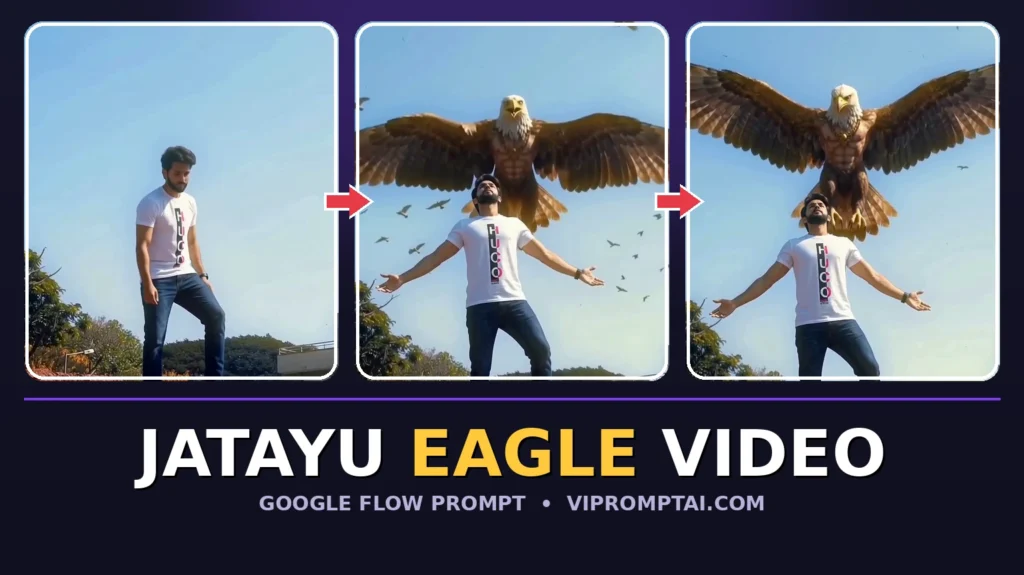
Take @video1 as the timing and action guide: every gesture, every camera position, and the eagle's movement must follow it exactly. Put the person from @image1 in the man's place. The face, hair, beard, skin tone, build, white t-shirt, and jeans must stay true to @image1 in all frames, with the face clearly seen from start to finish — the face from @video1 must not appear at any point, and the two faces must not mix. The eagle stays giant and reddish-brown, lifting up behind him with its wings opened wide the moment he opens his arms, beating its wings slowly and powerfully, with small birds flying all around it. The golden evening sky, dry bushes, lamp posts, warm tones, low angle, and wide 16:9 frame stay the same. Only the man changes, becoming the person from @image1. Keep the frame free of all writing: no words, no titles, no captions, no logos, no watermarks. Avoid: the original face, mixed or shifting faces, a small or absent eagle, added people, warped faces or hands, broken wings, flicker, scene changes, text, logos, watermarks.Make it yours: Enhance this prompt or turn your result into a pin with the Pinterest Pin Maker.
In this viral reel, a man stands calmly outdoors under a warm golden sky. He slowly spreads both arms wide — and a giant eagle rises up behind him, wings spread wide, while a flock of small birds flies around. You can make this exact video with your own face, free, using Google Flow. This post gives you the free video prompt, the muted reference video, and simple step-by-step instructions. All you need is one clear front-facing photo.
People love this edit because it turns an ordinary standing video into a mythological moment — one arm movement, and a giant eagle rises behind you like a guardian from the Ramayana. It works with any face, any outfit, and any open sky, so everyone can make their own version in minutes.
Reels using this effect get shared because viewers tag friends to try it too. Trends like this move fast — the earlier you post your version, the more of the wave you catch.
Download the muted reference video here.
Before You Paste This Prompt, Check These 4 Things
Use these settings in Google Flow, then run through the checklist:
- Mode: Video with Ingredients
- Aspect ratio: 16:9 landscape
- Duration: 10 seconds
- Photo: 1 clear front-facing photo
- Use the muted video: upload the muted reference video attached to this post — videos with sound can fail in Google Flow.
- Use one sharp photo: a front-facing photo with your full face visible and in focus.
- Keep the upload order: reference video first (@video1), then your photo (@image1).
- Stay on 16:9: the reference video is horizontal, so generate in 16:9 landscape.
How to Make the Jatayu Eagle Video in Google Flow
Flow’s menu names and models change often — if a label looks different, pick the closest match. Regenerating once or twice for the best result is normal.
- Download the muted reference video from this post.
- Open Google Flow (labs.google/flow) and sign in with your Google account.
- Create a new project, choose Video, and select Ingredients mode.
- Upload the muted reference video first, then your clear photo.
- Set the aspect ratio to 16:9 and the duration to 10 seconds.
- Paste the prompt above, check that @video1 is the video and @image1 is your photo, then Generate.
- Open the result in CapCut or VN and add your music.
The reference video is muted on purpose, because Google Flow works best with a silent video. Once your video is generated, open it in CapCut or VN, add the song or audio you want, and export it for Instagram Reels or YouTube Shorts.
Troubleshooting
| Problem | Likely reason | Fix |
|---|---|---|
| Video fails to generate | Reference video has sound, or the photo is blurry | Use the muted video from this post and a sharper, front-facing photo. |
| Face does not match your photo | Photo unclear, or @image1 not selected as reference | Upload a closer, well-lit photo and check @image1 is selected before generating. |
| Eagle looks small or missing | Prompt edited too much, or wrong aspect ratio | Use the full prompt unchanged and keep 16:9 landscape. |
Tips & Small Changes
- Shoot or pick your photo in open daylight with a clear sky behind you — the eagle blends best into a bright sky.
- Keep your arms fully spread in the photo so the motion matches the reference video.
- If the face drifts, use a sharper, closer photo, repeat “keep the face exactly as in @image1” at the end of the prompt, and generate again — one good photo beats three blurry ones.
- For a woman in the video: change “the man” and “his arms” to “the woman” and “her arms” in the prompt. For a bigger eagle: add “the eagle fills the whole sky behind him” to the prompt.
- Add the music last in CapCut or VN so the video timing stays clean.
Frequently Asked Questions
Is the Jatayu eagle video prompt free?
Yes. The prompt and the muted reference video on this page are free. You only need a free Google account to use Google Flow.
Can I make it with just one photo?
Yes. One clear front-facing photo is enough — upload it as @image1 with the muted reference video as @video1.
Why is the reference video muted?
Google Flow works best with a silent reference video. Add your music afterwards in CapCut or VN.
Which aspect ratio should I use?
16:9 landscape, because the reference video is horizontal.
You can also try the same prompt in the Google Gemini app: open Gemini, choose Create Video, upload your clear photo, paste the prompt, and set 16:9. Video generation in Gemini depends on your plan and daily limits, so Flow is the easier free route for this trend.